Independent / Centrist Search Engines

Independent and centrist search engines aim to provide balanced, non‑partisan results without leaning left or right. These platforms focus on neutrality, transparency, and user choice.

Free Start Pages

Search Engines:

Independent / Centrist Search Engines

Why Independent Search Engines Matter

Most major search engines are influenced by corporate, political, or algorithmic biases. Independent engines offer:

  • Balanced, non‑partisan results

  • No political filtering

  • Transparent ranking methods

  • Privacy‑first design

  • Freedom from Big Tech influence

These engines are ideal for users who want search results without ideological tilt.


Featured Independent Search Engines

  • Brave Search — Independent index with neutral ranking

  • Qwant — European search engine with balanced results

  • Mojeek — Independent crawler with no political filtering

  • Swisscows — Family‑friendly, privacy‑focused, non‑partisan

Right Search Engines

Top 1% Conservative Sites

Top Conservatives

Conservative Sources

Conservative Links/Sites

Customizable/Sharable

A Living Network of Stunning Sources

You are a part of something big; when users, just like you, find Right leaning Search Engines, the cream of the crop, they suggest it for inclusion to our database.  The top Search Engines are added to our Start Pages for easy access.

Rated 5 out of 5

“I just want neutral results. These engines feel refreshingly balanced.”

— Ellen R., Virginia
Rated 5 out of 5

“Brave Search gives me clean results without the political noise.”

— Jason H., Michigan

Trusted by 16,000+ Users @ Month

Being Right has never been so easy!

For Conservatives, Constitutionalists, Family, Independents, Libertarians, Moderates, Patriots, and all those who want to be Right.

Free Start Pages

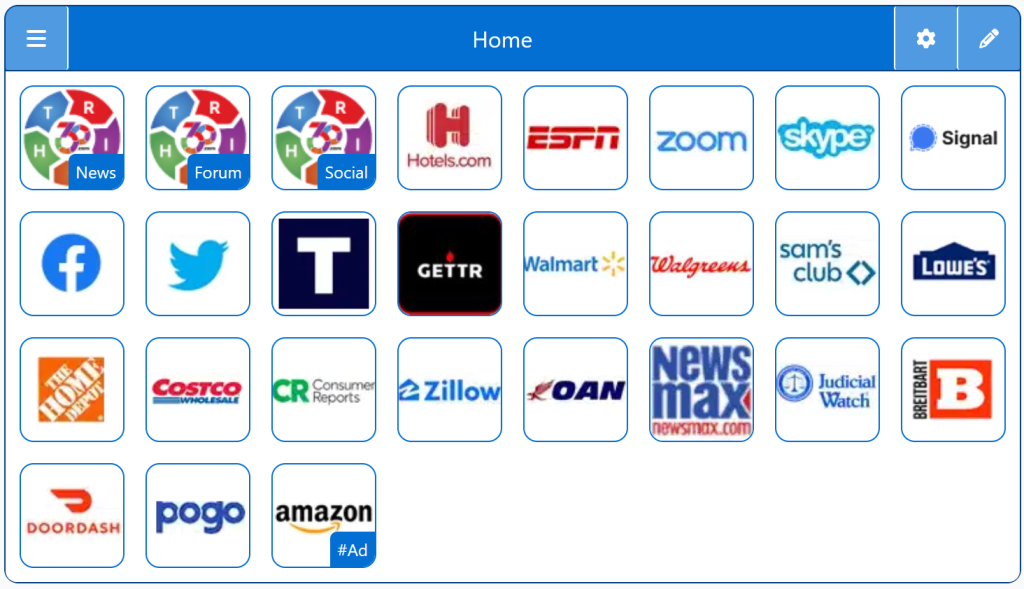
StartPage - Conservative Search Engines
Demo/Example

Chrome: Set HomePage/StartPage

The following Instructions are intended for the Chrome Browser.

Chrome Quick Set

Chrome-Drag-URL-to-Home-Icon
  1. Drag/Drop

CAVEAT: Many browsers are hiding this option to keep you on their chosen site. The Video will cover how to get your Homepage Button/Icon back.

Chrome Video

Chrome Step-by-Step

With the Chrome Browser Open, perform the following:

  1. Upper Right Corner, Find/Select the Options Button/Icon (3-dots),  Slide down to Find/Select “Settings“.
  2. On the left menu, select “Appearance”.  Toggle the “Show home button”. In the “Open a specific page or set of pages”. Click “Add a new page” and enter: Right360.com or enter your customized Right360.com/URL. Click Save.